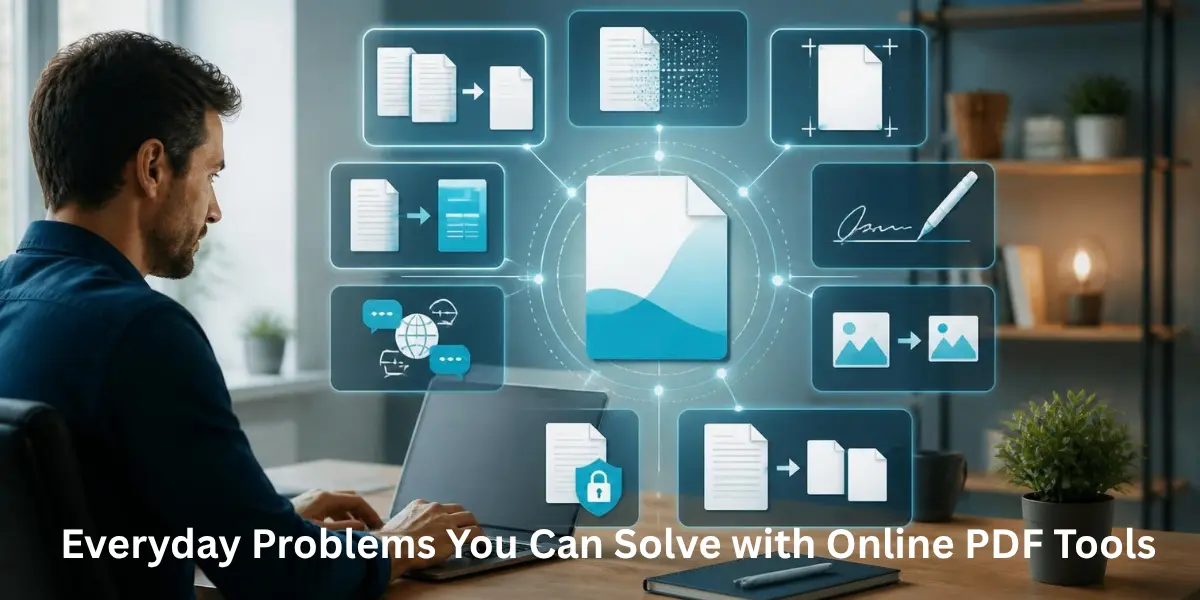
PDFs make it easy to share and store documents, but managing them can be challenging when you need to rearrange pages, shrink file sizes, modify content, or retrieve specific information.
Many common PDF tasks can be completed quickly using browser-based tools Istead of installing a full desktop application, you can use an online PDF tool for a specific task and download the finished file when you are done.
Here are some of the most common PDF problems and the type of solution that can help:
PDF Problem
Useful Solution
Best For
File is too large
PDF compression
Email attachments and uploads
Pages are in the wrong order
Merge or organize pages
Reports and documents
Only a few pages are needed
Split or extract pages
Sharing selected content
Text needs changing
Online PDF editor
Quick document updates
Data needs to be reused
PDF conversion
Word, Excel, or PowerPoint
Scanned text cannot be selected
OCR
Searchable and editable scans
Document needs approval
Electronic signature
Forms and agreements
Sensitive information must be hidden
Redaction and security tools
Confidential documents
When a PDF Is Too Large to Upload or Send
Large PDF files can cause problems when you are emailing documents, submitting them through online portals, or uploading them to cloud storage. Image-heavy PDFs are especially likely to become oversized.
A compression tool can reduce unnecessary file size while keeping the document readable. The right compression level depends on what the PDF contains. A text-based document may tolerate stronger compression, while a document containing photographs or detailed graphics may lose noticeable quality.
If you regularly need to Compress pdf files, check the final document before sending it. Make sure the text remains readable, images are clear enough, and important pages have not changed unexpectedly.
When You Need to Combine or Reorganize Pages
Sometimes the information you need is contained in multiple PDF files. You may have a cover page in one file, supporting documents in another, and an appendix somewhere else.
An online merger can bring these files together into one document. For example, Merge PDF Online is useful when you need to combine reports, application documents, invoices, or several sections of a project into a single PDF.
The opposite problem happens when one PDF contains more pages than you need. In that case, a Split PDF Tool can help separate selected pages or divide a large document into smaller files.
After reorganizing a PDF, check the page order, orientation, and total page count before sharing the finished file.
When You Need to Make Quick Changes to a PDF
You may not need a complete PDF editor just to make a small change. Online editing tools can be useful for adding text, filling forms, inserting images, highlighting information, adding page numbers, or placing annotations.
This is particularly helpful when someone sends you a form that needs a few details completed before you return it.
However, PDF editing has limitations. Complex layouts, unusual fonts, interactive elements, or heavily designed documents may not behave exactly as expected. Always review the final version instead of assuming the edited file looks identical to the original.
When You Need to Convert a PDF Into Another Format
A PDF is designed primarily for consistent viewing, but sometimes you need to work with its contents in another application.
For example, converting a PDF to Word can make text easier to edit, while PDF-to-Excel conversion can help when you need to work with tables, numbers, or financial data.
Conversion quality depends heavily on the original document. A clean, text-based PDF usually produces better results than a scanned or poorly formatted file.
After conversion, check headings, tables, columns, numbers, dates, and other important information. Even when the conversion looks correct at first glance, small formatting or data errors can occur.
When a Scanned PDF Is Not Searchable
A scanned document is often stored as an image rather than actual text. This means you may be unable to search for words, copy information, or edit the contents normally.
Optical Character Recognition (OCR) can analyze the scanned pages and identify the text within them. This can turn a scanned document into a searchable PDF or provide editable text for further use.
OCR works best when the scan is clear and the text is properly aligned. Handwriting, unusual fonts, blurry images, and damaged pages can reduce accuracy.
For important documents, always compare the extracted text with the original scan, especially when names, figures, dates, or legal information are involved.
When You Need to Sign a PDF
Many everyday documents now require electronic signatures rather than printing, signing, scanning, and sending them back.
Online PDF tools can let you add a signature, enter required information, and return the completed document without printing it.
This can save time when dealing with forms, agreements, approvals, and routine business paperwork. However, not every signature method provides the same level of identity verification or security. If a document requires a specific type of digital signature or compliance standard, check its requirements before choosing a basic signature feature.
When a PDF Contains Sensitive Information
PDF files may include sensitive personal, financial, business, or confidential data. Before uploading a file to an online tool, check the service provider’s privacy policy and security measures.
Redaction is another area where caution matters. Simply placing a black box over sensitive text does not necessarily remove the underlying information. A proper redaction process should permanently remove the selected content from the document.
You should also consider metadata, passwords, encryption, sharing permissions, and where the file is processed. For documents containing highly confidential information, using offline software may be safer than uploading files to an online platform.
Online PDF Tools vs. Desktop Software
Online tools are convenient when you need a quick task completed without installing software. They can be especially useful on shared computers, mobile devices, or when working away from your usual workstation.
Desktop software may be preferable when you regularly handle PDFs, work with confidential documents, need advanced editing features, or want processing to happen locally.
A simple rule is:
- Choose an online tool for quick, routine PDF tasks.
- Choose desktop software for advanced workflows or sensitive files.
- Check privacy policies before uploading confidential documents.
- Review the final PDF after every important conversion or edit.
Who Can Benefit from Online PDF Tools?
These tools can help a wide range of users.
Students can combine assignments, reduce file sizes, extract textbook pages, or convert documents for coursework.
Professionals can edit forms, organize reports, compress attachments, and prepare documents for clients.
Small businesses can manage invoices, contracts, proposals, and scanned records without maintaining complex PDF software.
Remote workers can handle document tasks directly from a browser when they do not have access to their usual computer.
The key is choosing the right tool for the specific problem instead of trying to use one solution for every PDF task.
Frequently Asked Questions
What are online PDF tools?
Online PDF tools are browser-based services that help users perform common document tasks such as editing, compressing, merging, splitting, converting, signing, and organizing PDF files.
Can I edit a PDF without installing software?
Yes. Many browser-based PDF editors allow you to make basic changes without installing desktop software. The available features vary between services.
Can I split a PDF into separate files?
Yes. PDF splitting tools can extract individual pages or divide a larger document into smaller sections.
Is online PDF software better than desktop software?
Neither is always better. Online tools are convenient for quick tasks, while desktop software can offer stronger privacy, advanced features, and more control for complex workflows.
Why should I check a PDF after converting it?
Conversion can sometimes change formatting, tables, fonts, numbers, or page layouts. Reviewing the finished file helps catch errors before the document is shared or submitted.
What should I do if a PDF contains confidential information?
Consider using a trusted service with appropriate security controls or processing the document offline. For sensitive content, also verify that redacted information has actually been removed rather than simply covered.
Conclusion
Everyday PDF problems do not always require complicated software. Whether a file is too large, pages need reorganizing, text needs editing, a scan needs OCR, or a document needs a signature, an online PDF tool can often provide a quick solution.
The important part is choosing the right tool for the task and checking the final document afterward. For routine work, browser-based PDF tools can save time and make document management much easier. For confidential files or advanced workflows, however, desktop or offline solutions may provide better control.