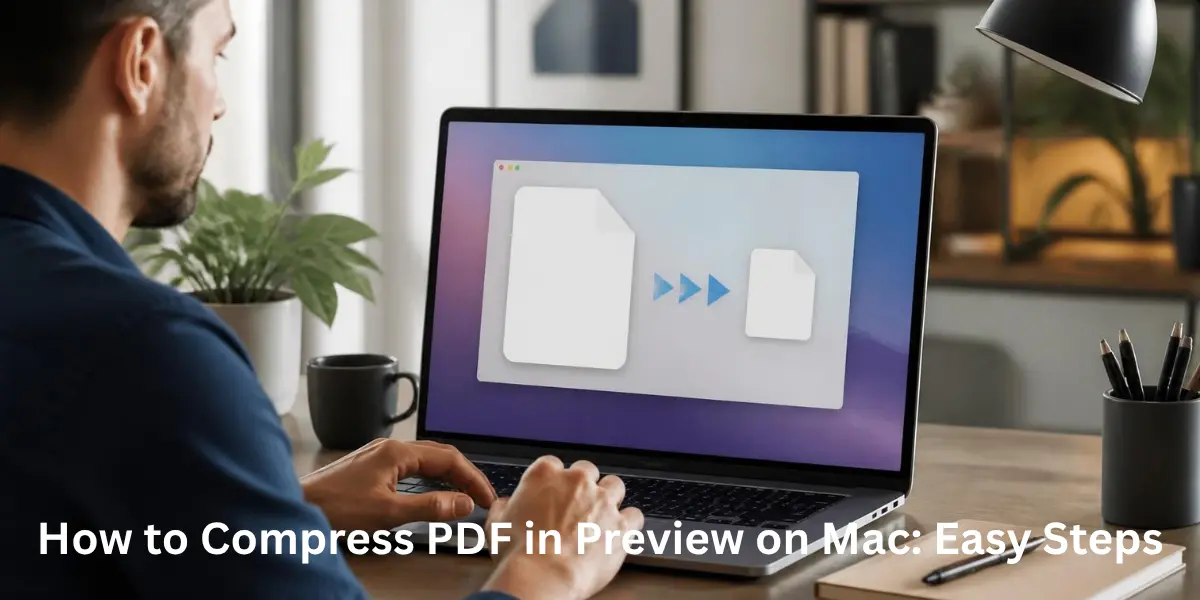
If you need to make a PDF smaller on a Mac, you do not necessarily need to install a PDF compressor. Preview, Apple's built-in PDF and image app, can reduce PDF file size through its Quartz Filter options.
The quickest method is:
- Open the PDF in Preview.
- Select File > Export.
- Choose Reduce File Size from the Quartz Filter menu.
- Enter a new filename so you keep the original.
- Click Save.
- Open the compressed PDF and check its text and images for quality.
Apple notes that compression can lower quality, and the final file size depends on the document and export options.
What Does PDF Compression Do?
PDF compression reduces the amount of data stored inside a Portable Document Format (PDF) file. This can make a large document easier to email, upload, store, or share.
The amount of reduction depends heavily on what the PDF contains. A text-heavy document may not shrink dramatically, while a PDF containing scanned pages, photographs, screenshots, or other raster images can respond differently to image compression.
The goal should not always be the smallest possible PDF. A better target is the smallest file that remains readable and suitable for its intended use.
Step-by-Step: Compress PDF in Preview
1. Open the PDF in Preview
Locate the document in Finder and double-click it, or open Preview and select the PDF. Preview can open and manage PDF files directly on macOS.
Consider creating a copy before compressing any important document. This is especially useful for contracts, signed forms, business records, portfolios, or documents containing detailed images.
2. Choose File > Export
With the PDF open, select File > Export from the menu bar.
Preview uses Export to create a new version of a PDF and provides options for reducing its file size.
3. Select Reduce File Size
In the Export window, look for Quartz Filter. Open the menu, then choose Reduce File Size.
Quartz Filters are part of Preview's PDF export workflow and can change how the PDF is processed during export.
4. Save a New Copy
Give the compressed document a different filename, such as report-compressed.pdf, and save it.
Keeping the original makes it easy to return to the higher-quality version if the compressed copy becomes too blurry or does not meet your needs.
5. Check the Compressed PDF
Do not judge the result only by its file size. Open the new PDF and inspect:
- Small text and fine print
- Photographs and screenshots
- Scanned pages
- Charts and diagrams
- Signatures or important details
- Overall readability at normal zoom
If everything looks good and the file meets your upload or email limit, you are finished.
Why Does Preview Make a PDF Smaller?
PDF compression can affect embedded images and other document data. Preview also provides additional export choices such as Optimize images for screen and Save images as JPEG.
The Create Linearized PDF option serves a different purpose. It is intended to optimize a PDF for faster loading and viewing in web browsers rather than simply making the smallest possible file.
This matters because not every PDF needs the same type of optimization.
PDF Type
What to Expect
Text-heavy document
Usually less room for dramatic reduction
Scanned document
Image compression can make a significant difference
Photo-heavy PDF
Potentially large reduction, but quality needs checking
Screenshots or graphics
Compression may affect sharpness
Technical document
Inspect diagrams, labels, and fine details carefully
How to Compress a PDF Without Making It Blurry
There is no universal way to make a PDF dramatically smaller with zero quality loss. Compression can reduce image quality, especially when a document contains photographs or scanned pages.
For better results, use this approach.
First, try Preview's standard Reduce File Size option. If the output remains readable, it may be all you need.
If the document becomes blurry, keep the original. A heavily compressed scanned document may lose the clarity needed for small text, signatures, or photographs.
If the file is still too large, change the method rather than repeatedly compressing the same output. Repeated lossy processing can make images progressively worse.
The best result is a practical balance between file size and document quality.
What If the PDF Is Still Too Large?
A common mistake is assuming every PDF will shrink substantially with the same setting. Compression results vary because PDFs can contain different combinations of text, fonts, vector graphics, raster images, metadata, and scanned pages.
Use this simple decision path:
- Already below the required limit? Stop.
- Slightly above the limit? Try another export and review the available optimization options.
- Mostly scanned or photo-based? Expect image quality to be the main trade-off.
- Still far above the limit? Consider a more controllable PDF compression method.
- Need an exact target such as 1 MB or 200 KB? Preview may not be the best tool because its standard workflow does not provide a simple target-size field.
- Document is confidential? Prefer a method that processes the file locally rather than uploading it to a web service.
If a document remains too large even after compression, packaging multiple files with a PDF to ZIP / RAR Tool can make sharing and organizing documents easier, especially when sending several PDFs together as a single archive.
Can You Compress a PDF to 1 MB or 200 KB?
Preview can reduce a PDF's size, but it does not offer a straightforward “make this exactly 1 MB” or “compress to 200 KB” control.
Whether a document can reach a particular target depends on its contents and how much image data can be reduced without making the document unusable.
If an application requires a specific maximum size, check the compressed file after every export. If Preview cannot meet the limit while maintaining acceptable quality, a dedicated PDF optimizer with adjustable compression settings may be more suitable.
Everyday Problems You Can Solve with Online PDF Tools
Beyond compression, there are many Everyday Problems You Can Solve with Online PDF Tools, including converting formats, merging documents, splitting pages, organizing reports, and preparing files for sharing.
These tools can be useful when you need a quick browser-based solution without installing additional software. However, sensitive documents should be handled carefully, particularly when an online service requires you to upload the file.
Is Preview Better Than an Online PDF Compressor?
For a quick, private Mac workflow, Preview has a major advantage: you can process the document locally without sending it to a third-party website.
An online PDF compressor may be more useful when you need additional compression controls, batch processing, or a specific target size.
Feature
Preview
Online PDF Compressor
Installation
None
Usually none
Offline use
Yes
Usually no
Local processing
Yes
Depends on service
Compression controls
Limited
Often broader
Exact-size control
Limited
May be available
Privacy
Local processing
Requires upload
Best for
Quick everyday compression
More control and advanced needs
For confidential contracts, financial records, identification documents, or internal business files, local processing can be the simpler privacy-conscious choice.
Preview Alternatives for More Control
ColorSync Utility
ColorSync Utility can provide a more advanced route for users who want greater control over PDF compression through filters. It is better suited to users comfortable with technical settings than someone who simply needs a smaller attachment.
Adobe Acrobat
Adobe Acrobat is worth considering for professional PDF workflows where compression, optimization, compatibility, and document management are recurring requirements.
It can provide more control than Preview, particularly for complex or image-heavy documents.
Online PDF Compressors
Online PDF compressors can be convenient when you need browser-based processing or additional controls. However, uploading a document means privacy and data-handling policies should be considered before using an online service.
Ghostscript
Ghostscript is a more technical option for users who want command-line control over PDF processing. It is powerful but unnecessary for most people who simply want to shrink an occasional PDF on a Mac.
Common Preview Compression Problems
The PDF Became Blurry
The compression process may have reduced image quality. Go back to the original and try a less aggressive workflow or a tool that provides more control over image resolution and compression.
The PDF Is Still Too Large
Check what is actually making the document large. A scan or photo-heavy PDF can contain much more image data than a text-based document. Preview's standard compression may simply not be enough for your target.
The Compressed PDF Became Larger
Compression is not guaranteed to produce a smaller file in every situation. The internal structure and content of a PDF can affect the result.
If the exported version is larger, compare it with the original and keep whichever version best meets your needs.
Reduce File Size Is Unavailable
Check that you are using File > Export and that the document is being exported as a PDF. Available options can also vary depending on the document and macOS version.
The Document Contains Sensitive Information
Avoid uploading confidential PDFs to an online compressor unless you have reviewed and accepted the service's privacy and retention practices.
A local Preview workflow avoids that upload step.
Best Practices for Smaller, Better PDFs
Before sending or uploading a compressed PDF:
- Keep an untouched original.
- Compare the file size before and after compression.
- Zoom in on small text and images.
- Inspect scanned pages for readability.
· Avoid repeatedly compressing a PDF that has already been compressed.
- Stop compressing once the file meets the required limit.
- Use stronger tools only when Preview cannot achieve the required balance.
- For confidential documents, consider local processing first.
Preview is an excellent first choice for everyday Mac PDF compression because it is already part of macOS and requires no separate PDF compressor. The key is knowing when its simple workflow is enough—and when you need more control.
FAQ’s
1.Can Preview Compress PDFs on Mac?
Yes. Preview can reduce PDF file size using File > Export > Quartz Filter > Reduce File Size. This is the standard built-in method for compressing PDFs in Preview.
2.Is Preview a Free PDF Compressor?
Preview is included with macOS, so you do not need to purchase a separate PDF compression application for the standard workflow.
3.Does Preview Reduce PDF Quality?
It can. Compression may reduce image quality, so always inspect the exported file before replacing or deleting the original.
4.Can I Compress a Scanned PDF in Preview?
Yes, but scanned PDFs can be particularly sensitive to image compression. Check small text, signatures, and fine details after exporting.
5.Can I Compress a PDF Without Uploading It?
Yes. Preview processes the document locally on your Mac rather than requiring you to upload it to an online compression service.
6.Why Is My PDF Still Too Large After Using Reduce File Size?
The PDF may contain high-resolution scans, photographs, screenshots, or other large embedded images. Preview's standard compression may not provide enough reduction for every document.
7.Can Preview Compress a PDF to Exactly 1 MB?
Not through a simple target-size setting. Preview can reduce the file, but reaching an exact limit depends on the document's contents and available export options.
8.Can I Compress a PDF to 200 KB in Preview?
It may be possible for some simple documents, but there is no guarantee. Highly image-based PDFs may become unreadable before reaching such a small size.
9.Should I Use Preview or an Online PDF Compressor?
Use Preview when you want a quick local workflow and privacy is important. Consider an online or dedicated PDF compressor when you need stronger controls, batch processing, or a specific size target.
10.Can I Compress Multiple PDFs With Preview?
Preview is not designed as a dedicated batch PDF compression tool. If you regularly need to compress many files, a specialized application may be more efficient.
Conclusion
For most Mac users, the easiest way to compress a PDF is to open it in Preview, choose File > Export, select Reduce File Size under Quartz Filter, and save a new copy.
The important part is not simply making the file as small as possible. Check the final document for blurry images, unreadable text, damaged details, and whether it actually meets your email or upload requirement.
If Preview cannot deliver the right balance between size and quality, move to a more controllable option such as ColorSync Utility, Adobe Acrobat, or a suitable online compressor.