
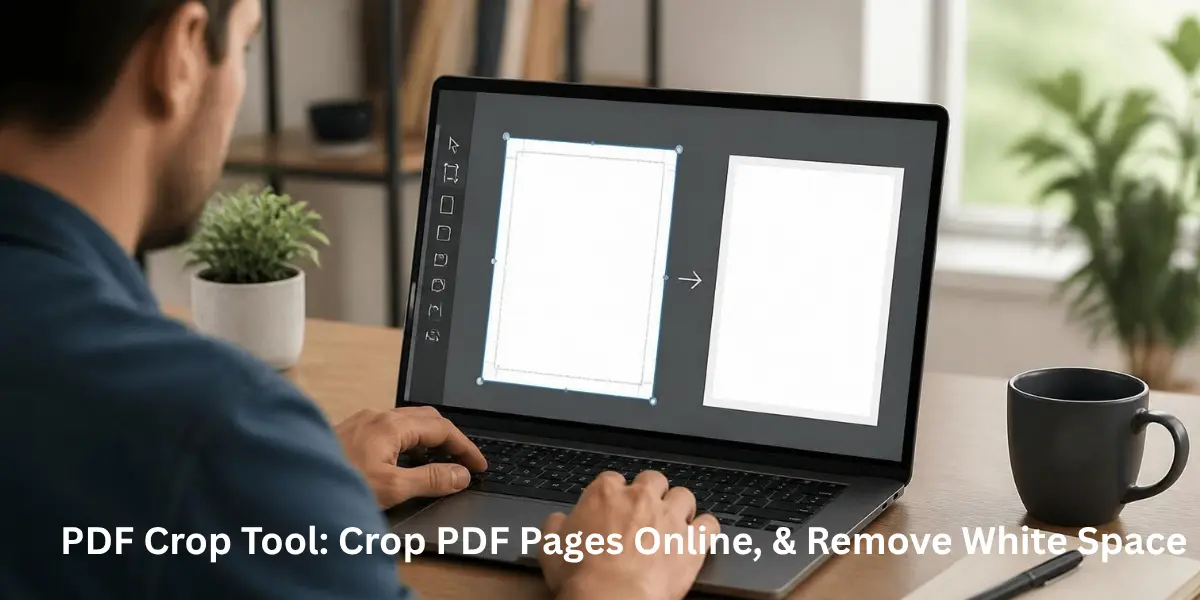
A PDF crop tool changes the visible area of a PDF page to remove unwanted margins, white space, scanner borders, or other areas around the content. It is useful when a document looks poorly framed, contains excessive blank space, or needs a cleaner layout for reading and printing.
Unlike resizing, cropping focuses on the visible page area rather than simply scaling the existing content. Depending on how a tool processes the file, content outside the visible crop area may remain inside the PDF. For that reason, cropping should not be confused with secure deletion or redaction.
What Does Cropping a PDF Do?
Cropping changes the page boundary used to display or print a PDF. A crop can make the document appear tighter by removing unnecessary space around text, images, forms, or scanned content.
For example, a scanned document may contain large white borders because the original paper was placed unevenly on a scanner. Cropping those borders can make the actual content easier to view without changing the underlying text or images.
If confidential information must be permanently removed, use a proper PDF redaction process instead of relying on cropping.
Why Crop a PDF?
Cropping can be useful in several common situations:
- Remove large white margins around document content.
- Eliminate scanner borders from scanned pages.
- Improve readability on smaller screens.
- Prepare pages for cleaner printing.
- Focus attention on a specific part of a page.
- Standardize the appearance of documents with unnecessary whitespace.
- Make presentation documents look more polished.
- Crop one page, selected pages, or an entire document.
It can be particularly helpful when working with scanned forms, research papers, receipts, presentations, worksheets, and documents created from different sources.
How to Crop a PDF Online
Most browser-based PDF cropping tools follow a similar process:
- Upload or select your PDF.
- Preview the pages to identify the area that needs to be removed.
- Select the crop area around the content you want to keep.
- Choose the page scope, such as one page, selected pages, or all pages.
- Apply the crop and review the result.
- Download the cropped PDF.
- Open the final file to verify that important content, links, forms, and page elements are still visible.
For documents with different page sizes or orientations, review each page instead of automatically applying one crop to the entire file.
Can You Crop One, Multiple, or All PDF Pages?
Yes. The available options depend on the PDF editor or cropping tool you use.
If only one page contains excessive whitespace, crop that page individually. If every page was scanned with the same margins, applying a consistent crop to multiple pages can save time.
Be careful with mixed documents. A PDF may contain A4, US Letter, Legal, portrait, and landscape pages in the same file. Applying the same crop dimensions blindly can remove useful content from pages with different layouts.
How to Remove White Margins From a PDF
Removing white margins is one of the most common reasons to crop a PDF. Start by identifying the actual content boundary and remove only the unnecessary space surrounding it.
Some tools offer automatic margin detection, while others allow you to drag the crop boundary manually. Automatic cropping can be convenient for uniform scans, but manual adjustment is often better when pages contain tables, images, signatures, or irregular layouts.
After cropping, check every page to make sure no text, page numbers, diagrams, or other important elements have been cut off.
How to Crop a Scanned PDF
Scanned PDFs can usually be cropped without changing their text or image content. If you also need to adjust image resolution, use a DPI Changer separately rather than treating cropping as a resolution-setting tool.
Cropping is especially useful for scans with dark edges, uneven borders, or large areas of blank space. However, cropping does not automatically create searchable text. If the scan contains only images, OCR is a separate process that can make the text searchable and selectable.
PDF Crop vs Resize vs Compress vs Redact
These operations solve different problems:
Operation
Main Purpose
Crop
Removes unwanted visible page areas or margins
Resize
Changes page dimensions or scales content
Compress
Reduces file size
Redact
Permanently removes sensitive information
Cropping should not be used simply because a PDF is too large. It may reduce the visible page area, but it does not necessarily produce a significant reduction in file size.
Likewise, cropping is not a secure method for hiding confidential information. If sensitive text or images must be removed permanently, use a dedicated redaction feature.
Understanding PDF Page Boxes
PDF files can contain several page-boundary definitions, including MediaBox, CropBox, TrimBox, BleedBox, and ArtBox.
The MediaBox represents the physical or overall page boundary. The CropBox generally defines the region displayed or printed by a PDF viewer. TrimBox and BleedBox are especially relevant to professional print workflows, while ArtBox can define the intended artwork area.
For everyday document cleanup, you usually do not need to understand every page box. However, these distinctions matter when preparing PDFs for professional printing or production.
Does Cropping Reduce PDF Quality?
Cropping itself does not normally mean that the content must be recompressed or reduced in resolution. However, the result depends on how the specific PDF tool processes the document.
For image-heavy PDFs, avoid unnecessary conversion or recompression if maintaining the original image quality is important. Always open the finished PDF and check text clarity, images, page layout, and other important elements.
Does Cropping Reduce PDF File Size?
Not necessarily.
Cropping mainly changes the visible page area. Objects outside that area may still remain within the PDF file, so the file size may stay similar.
If your main priority is to make the file smaller, use a PDF compression or optimization tool instead. Cropping and compression solve different problems.
Is Cropping a PDF Safe?
The answer depends on how the tool processes your document.
For non-sensitive files, an online browser-based tool can be convenient. For confidential business, legal, financial, or personal documents, check whether the service uploads files to a server, how long files are retained, and whether local or offline processing is available.
Most importantly, remember that cropping is not secure deletion. Content beyond the visible crop area may still remain in the PDF, depending on how the file was processed.
A4, Letter, and Legal PDF Pages
PDF documents can use different page dimensions depending on their origin and intended use.
- A4 is widely used internationally.
- US Letter is widely used in the United States and Canada.
- Legal is another common North American paper size.
When cropping documents for printing, consider the target paper size before removing margins. A crop that looks fine on screen may not leave the correct dimensions for printing or professional use.
Common PDF Cropping Mistakes
Avoid these problems when cropping:
- Applying one crop to pages with different dimensions.
- Cutting off page numbers, signatures, or important notes.
- Assuming cropping permanently deletes hidden content.
- Expecting cropping alone to significantly reduce file size.
- Confusing cropping with resizing.
- Removing bleed or trim areas from print-ready files without checking production requirements.
- Failing to review the final PDF after cropping.
A quick page-by-page review can prevent many of these issues.
What Else Can You Do With a PDF?
PDF cleanup is often part of a larger document workflow. Once the page layout is clean, you may also use a PDF translation tool when the document needs to be converted into another language.
Depending on the document, other useful operations may include OCR for scanned files, compression for smaller file sizes, splitting large documents, merging multiple PDFs, resizing pages, or converting PDF pages into images.
Choosing the right operation is easier when you first identify the actual problem: unwanted margins call for cropping, oversized files may need compression, and confidential information requires redaction.
Frequently Asked Questions
Can I crop a PDF online for free?
Yes. Many online PDF tools offer free cropping features, although limits can vary by service. Check the tool's page limits, file-size restrictions, processing method, and download requirements before using it.
Does cropping reduce PDF file size?
Usually, cropping alone should not be expected to significantly reduce file size. PDF compression is more appropriate when the primary goal is to make the document smaller.
Can I crop a scanned PDF?
Yes. Scanned PDFs can be cropped to remove white borders, dark scanner edges, or unnecessary blank space. OCR may still be required separately if you need searchable text.
Does cropping reduce PDF quality?
Cropping does not inherently reduce resolution. The final result may differ based on how the PDF tool processes the document.
Can I crop a PDF on a phone?
Many browser-based PDF tools work on mobile devices, while some PDF applications provide dedicated cropping features. The exact controls depend on the device and software.
Can I crop a PDF to A4 or Letter size?
Yes, if the cropping tool provides page-size controls or allows you to define exact dimensions. Make sure the selected area does not cut off important content.
What is the difference between CropBox and MediaBox?
MediaBox defines the overall PDF page boundary, while CropBox generally determines the region presented for viewing or printing. These page boxes can behave differently depending on the PDF and processing software.
Conclusion
A PDF crop tool is useful for removing unnecessary margins, scanner borders, and whitespace while creating a cleaner page layout. It can improve readability, presentation, and printing without necessarily changing the underlying content.
For the best results, preview your pages before cropping, use individual settings for mixed-size documents, and always review the finished PDF. Remember that cropping is a layout operation—not a substitute for redaction, compression, or resizing when those are the actual requirements.