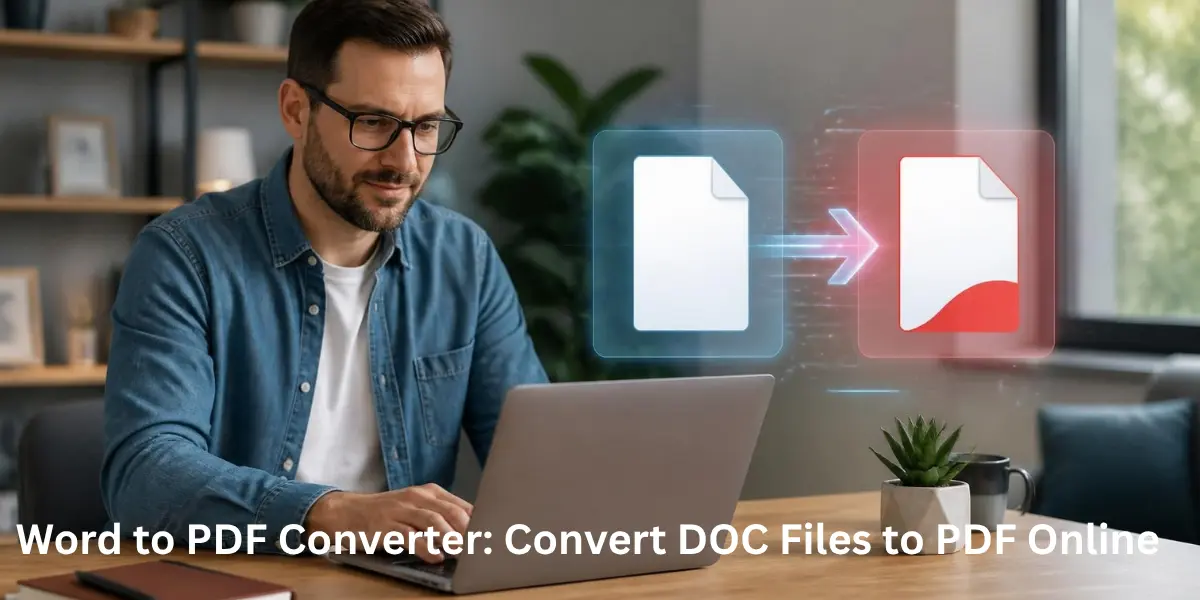
Microsoft Word is widely used for creating documents such as resumes, reports, assignments, business proposals, forms, and letters. However, Word files can sometimes look different when opened on another device or software version. Converting a document to PDF creates a fixed-layout file that is easier to share, print, and submit.
Our Word to PDF converter lets you convert Word documents into PDF directly from your browser. Instead of installing desktop software or changing complicated settings, you can use the tool on this website to turn a compatible Word file into a PDF.
The converter is useful for both personal and professional documents, whether you are preparing a resume for a US employer, submitting an assignment, sharing a business document, or creating a file for printing.
What Is a Word to PDF Converter?
A Word to PDF converter changes a Microsoft Word document, such as a DOC or DOCX file, into the PDF format.
Word documents are designed to remain editable, while PDF files are designed to preserve a document's appearance across different devices and applications. This makes PDF a practical format when the recipient needs to view or print the final version rather than edit the original document.
With our online tool, the basic process is straightforward:
- Open the Word to PDF converter on this website.
- Upload your Word document.
- Start the conversion.
- Download the resulting PDF file.
The exact options available may depend on the current tool interface and supported file limits.
Why Convert Word to PDF?
A Word document is convenient while you are writing and editing, but PDF is often better for the final version.
For example, a resume created in Microsoft Word may contain specific fonts, spacing, headings, tables, and page breaks. Sharing it as a PDF helps present the finished document as a consistent file rather than an editable working document.
PDF is also commonly used for:
- Job applications and resumes
- Business proposals and reports
- School and college assignments
- Invoices and forms
- Legal and administrative documents
- Printable documents
- Digital records and archives
For users in the United States, PDF is especially practical for documents prepared for employers, universities, businesses, and government-related submissions. The same benefit applies globally when a document needs to be shared in a reliable fixed format.
How to Convert Word to PDF With Our Tool
Step 1: Prepare Your Word File
Before uploading, open the document in Microsoft Word or another compatible application and check the final version.
Look at headings, images, tables, page breaks, margins, and hyperlinks. If the document contains important formatting, reviewing the original first can help you identify anything that needs correction.
Step 2: Upload the DOC or DOCX File
Open the Word to PDF converter on this website and select the Word file you want to convert.
DOCX is the modern Word document format, while DOC is an older format. If your document is saved in either supported format, upload it through the converter interface.
Step 3: Convert the Document
After uploading the file, use the conversion option provided by the tool. The converter processes the Word document and creates a PDF version.
You do not need to manually recreate the document in a PDF editor. The purpose of the tool is to handle the format conversion for you.
Step 4: Download and Check the PDF
Once conversion is complete, download the PDF and open it in your preferred PDF reader.
Do not skip this final check when the document is important. Review page breaks, images, tables, fonts, hyperlinks, margins, and overall layout before sending or submitting the file.
What Happens to Formatting During Conversion?
Formatting is one of the main reasons people convert Word documents to PDF.
Elements such as headings, paragraphs, images, tables, page size, orientation, margins, and hyperlinks can affect how the final PDF looks. A well-prepared Word document generally provides a better starting point for conversion.
If something looks unusual after conversion, compare the PDF with the original Word document. Check for:
- Missing or shifted images
- Unexpected page breaks
- Changes in spacing
- Table alignment problems
- Font substitutions
- Broken hyperlinks
- Different margins or page orientation
If the document contains unusual fonts, complex tables, embedded objects, or advanced Word features, always review the converted PDF before using it as a final document.
Word to PDF for Different Devices
An online Word to PDF converter can be useful when you are working across different devices.
You may create a document on Windows and later need the PDF on macOS. You might also work from an Android phone, iPhone, or Chromebook when you do not have access to your usual desktop setup.
Because the converter works through a browser, it can be a convenient option when you need to convert a document without relying on a particular desktop application.
This is also useful for students, freelancers, remote teams, job seekers, and small businesses that regularly move documents between devices.
Word to PDF vs Keeping the Word File
The right format depends on what you need to do next.
Need
Better Format
Continue editing the document
Word
Send a final version for viewing
Print a finished document
Submit a fixed-layout application
Collaborate on editable text
Word
Preserve the final presentation
If another person needs to edit your content, keeping the original DOC or DOCX file makes more sense. If the document is finished and should be viewed as presented, PDF is usually the more suitable choice.
Word to PDF for Professional Documents
Businesses can use our tool when they need to turn editable documents into shareable PDF files.
A marketing proposal, company report, quotation, application form, or client document may begin as a Word file. Converting the completed version to PDF creates a separate final copy while leaving the original document available for future editing.
The same workflow can help freelancers and job seekers. For example, you can prepare a resume in Word, check the formatting, convert it using our tool, and then submit the PDF to an employer or recruitment platform.
Word to PDF and Other File Formats
Word is not the only document format used in everyday work. You may also encounter RTF or TXT files, while spreadsheets may use formats such as ODS.
For other document types, such as comic book archives, a CBZ to PDF Converter can be useful when the final content needs to be available as a PDF.
The important distinction is that each format serves a different purpose. Word is primarily suited to editable documents, while PDF is intended for consistent viewing and sharing.
If your document is already in another format, use the appropriate conversion tool rather than changing the file extension manually. Simply renaming a file from .docx to .pdf does not actually convert its contents.
PDF After Conversion: What Can You Do?
Once your Word document has become a PDF, you may need additional PDF operations.
If you receive encoded document data instead of a regular file, you can also use the Base64 to PDF Converter for that specific conversion task.
For example, a completed PDF may need a stamp, adjusted margins, or another modification before it is ready for final use. Depending on your task, you can use the relevant PDF tools available on this website instead of rebuilding the document from the beginning.
For scanned documents, OCR may be necessary if you need searchable or selectable text. For important files, digital signatures can also be relevant when authentication or approval is required.
If long-term archiving is the goal, formats such as PDF/A may be considered because they are designed specifically for document preservation.
Is Online Word to PDF Conversion Right for You?
Our Word to PDF tool is a practical choice when you already have a finished DOC or DOCX file and need a PDF without going through a longer desktop workflow.
Before converting a large or important document, check the tool's current interface for supported file types, file-size limits, usage restrictions, and available options. These details can vary between online services.
For sensitive documents, also review the website's privacy information and avoid assuming that every online converter has the same data-handling practices.
Common Word to PDF Conversion Mistakes
Avoid these simple problems before submitting a converted document:
- Uploading the wrong version of the Word file
- Forgetting to review the final PDF
- Ignoring page breaks or table alignment
- Using unsupported fonts without checking the result
- Renaming a file instead of actually converting it
- Assuming the PDF will be editable like the original Word file
- Ignoring file-size or service limitations
A quick review after conversion can prevent formatting problems from reaching a client, employer, teacher, or other recipient.
FAQ’s
1.Can I convert DOCX to PDF with this tool?
Yes. If DOCX is supported by the current converter, you can upload the Word document and convert it to PDF through the tool on this website.
2.Can I convert an older DOC file to PDF?
Yes, when the tool supports the DOC format. DOC is an older Microsoft Word format, so check the supported file types shown on the converter before uploading.
3.Does converting Word to PDF make the document editable?
No. PDF is primarily a fixed-layout format. If you need to make substantial text changes, keep the original Word document available for editing.
4.Will my images and tables remain in the PDF?
The converter is designed to convert the Word document, but complex formatting can sometimes require checking. Always open the resulting PDF and verify important images, tables, spacing, and page breaks.
5.Can I use the Word to PDF converter on my phone?
If your device has a compatible web browser, you can access the online tool from supported mobile devices such as Android phones and iPhones. The available experience may depend on the device and browser.
6.Is PDF better than Word for a resume?
For submitting a finished resume, PDF is often a practical choice because it presents the document as a fixed file. Keep the Word version separately so you can update your resume later.
7.Is online Word to PDF conversion safe for private documents?
Safety depends on how an individual service handles uploaded files and user data. Before converting sensitive documents, review the website's privacy information and file-handling policies.
8.Can I convert a Word document without Microsoft Word?
If you already have the DOC or DOCX file, you can use an online converter such as the Word to PDF tool on this website without opening the document in Microsoft Word first.
9.Why does my PDF look different from the Word document?
Differences can occur because of fonts, images, tables, spacing, page breaks, or other document features. Compare the PDF with the original and correct the Word file if necessary before converting again.
Conclusion
Converting a finished Word document to PDF is a simple way to prepare files for sharing, printing, applications, and professional communication. Our Word to PDF converter provides a convenient browser-based workflow: upload your supported Word file, convert it, and download the PDF.
For the best result, prepare your DOC or DOCX document carefully and always review the converted PDF before submitting or sharing it.